


HoweYi IP800-NVR
Professional 8MP 4K Ultra HD PoE Security System

4K Ultra HD Clarity
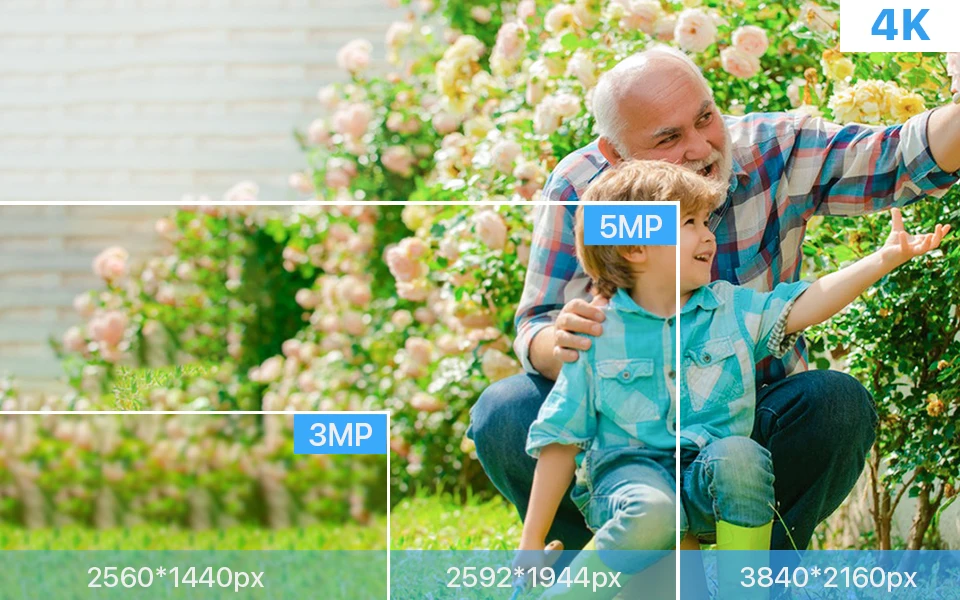
The HoweYi IP800-NVR offers 4x the resolution of 1080P, capturing every detail with high pixel counts for crystal-clear digital zoom.
Advanced AI Detection
Precisely identify people and vehicles to reduce false alarms. Get instant app notifications and email alerts when movement is detected.
Full Color Night Vision
Featuring an advanced CMOS sensor to improve contrast and low-light performance, providing up to 100ft of clear night vision.
Exceptional 4K Image Quality
The ultra HD 4K sensor in the IP800-NVR captures more light for superior color and contrast.
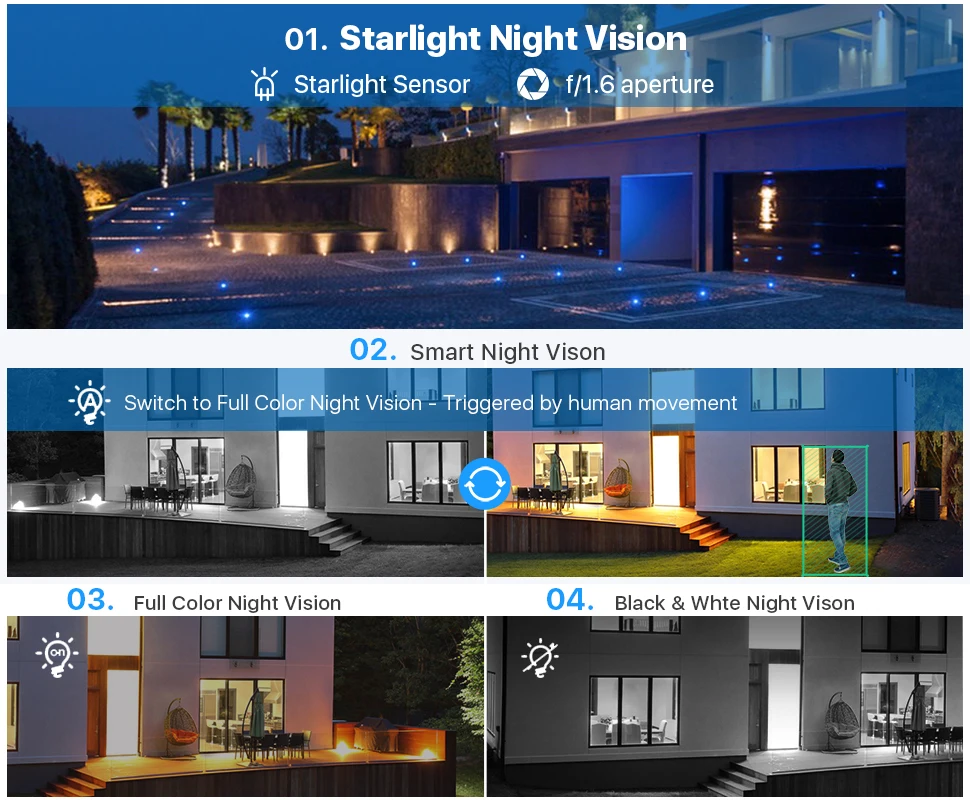
Four Versatile Night Vision Modes
Choose from Starlight, Smart, Full Color, or Infrared modes to monitor your property 24/7.
Expandable 16-Channel Capacity
The 8-port NVR can be expanded to a 16-channel system by adding a PoE switch.

Real-Time Two-Way Audio
Listen and talk back directly to anyone near the camera via the built-in mic and speaker.

Intelligent AI Person & Vehicle Detection

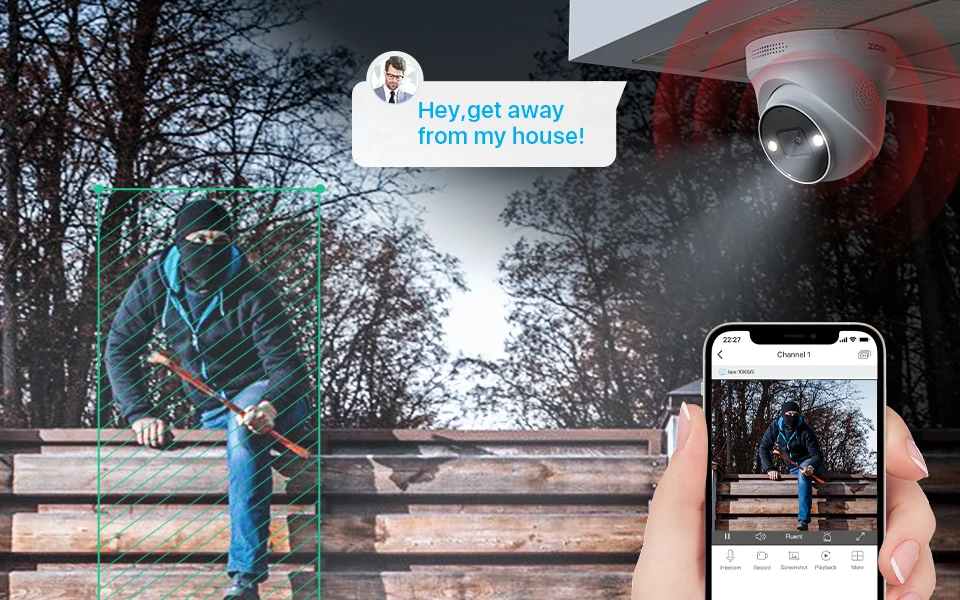
Proactive Defense: Light & Sound Warning
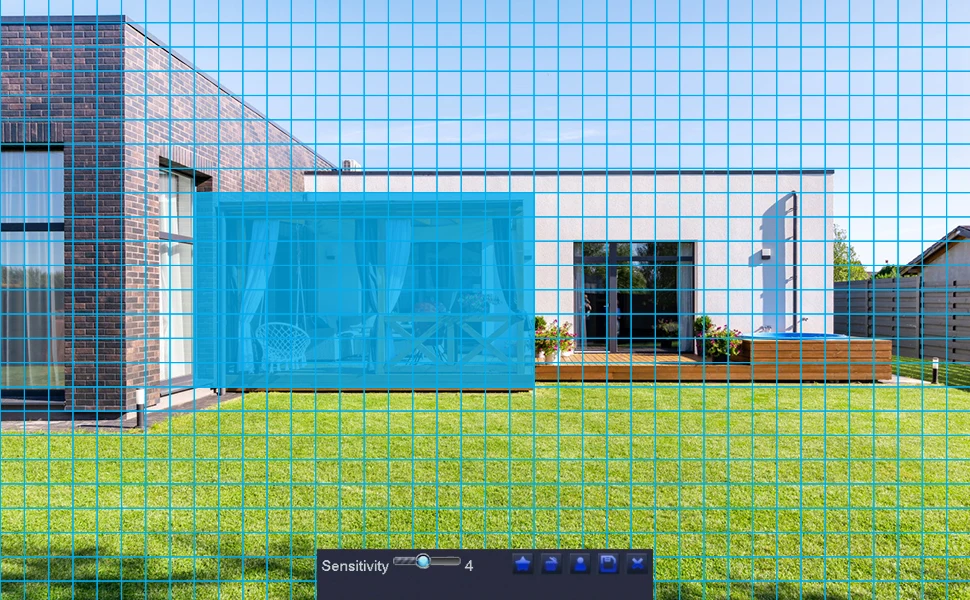
Customizable Detection Zones
Multiple Recording Modes

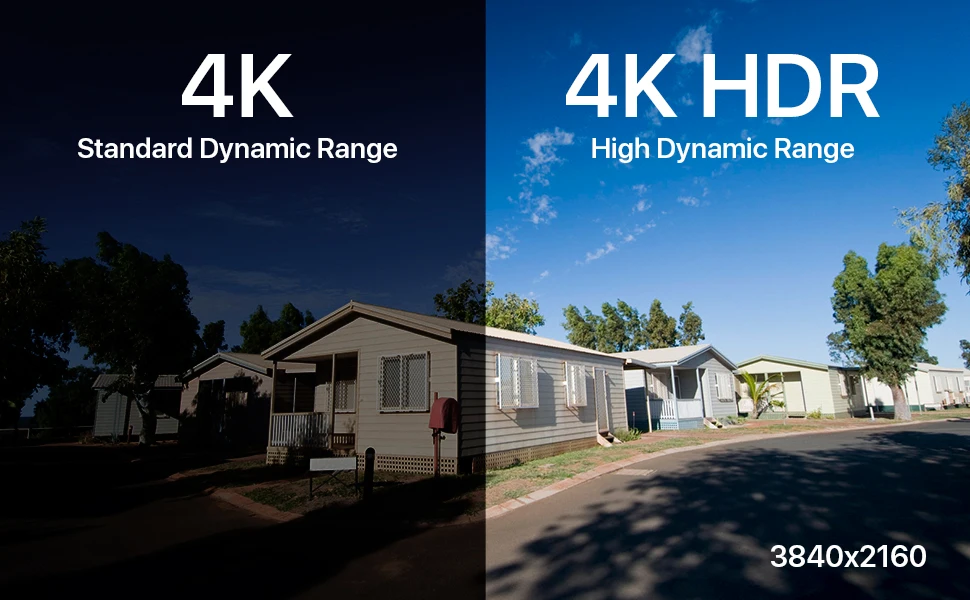
HDR (High Dynamic Range)
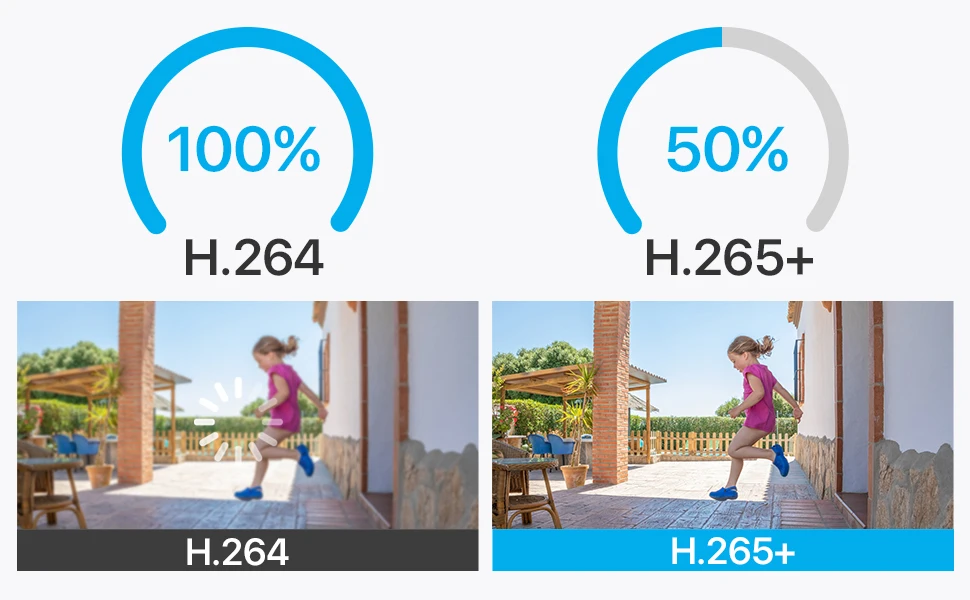
H.265+ Video Compression
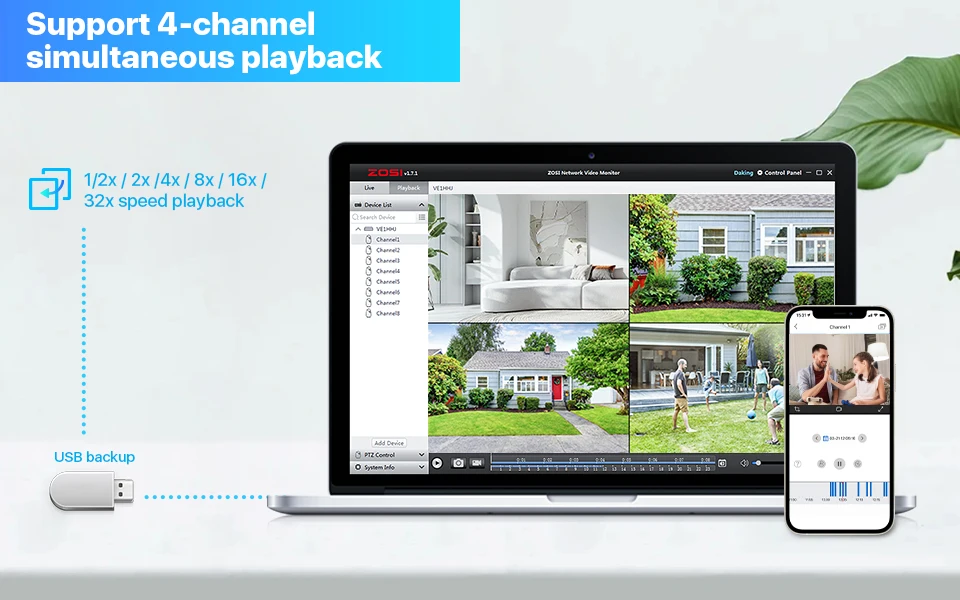
Simultaneous Playback
Easy Remote Access

Built for Any Environment
Long-range 100-meter cable transmission and IP66 metal housing for indoor/outdoor use.


HoweYi IP800-NVR Specifications
| Brand | HoweYi |
| Model | IP800-NVR |
| Resolution | 8MP 4K (3840x2160) |
| AI Detection | Face, Person, and Vehicle Detection |
| Camera Housing | Metal Bullet/Dome, IP66 Waterproof |
| Video Input | 8 Channel NVR (Expandable up to 16CH) |
| Transmission | Wired PoE (Power over Ethernet) |
Common Questions
Q1: Can I add more cameras to the IP800-NVR system?
Yes. You can add more HoweYi (only) 8MP, 5MP, or 2MP POE cameras. The NVR supports up to 8 directly, or up to 16 with a PoE switch.

Q2: How do I enable 4K 8MP resolution?
Ensure you use a 4K monitor. Connect the NVR via HDMI and manually adjust the "Video Output" to "3840 * 2160" in the system basic settings.
Q3: Why is there no sound on my monitor?
Sound output requires an HDMI connection to a TV or monitor with built-in speakers. Check the audio settings in the Main Menu to ensure volume is enabled.